
Few things are as infuriating for a business owner as watching your website go down right in the middle of a marketing campaign. You check your site, only to find a frustrating error screen saying “508 Resource Limit Is Reached” or “503 Service Unavailable”. When you understand why your shared hosting keeps crashing, you can fix the underlying bottlenecks rather than falling for unnecessary, overpriced server upgrade traps.
Direct Answer (Why Shared Hosting Crashes):
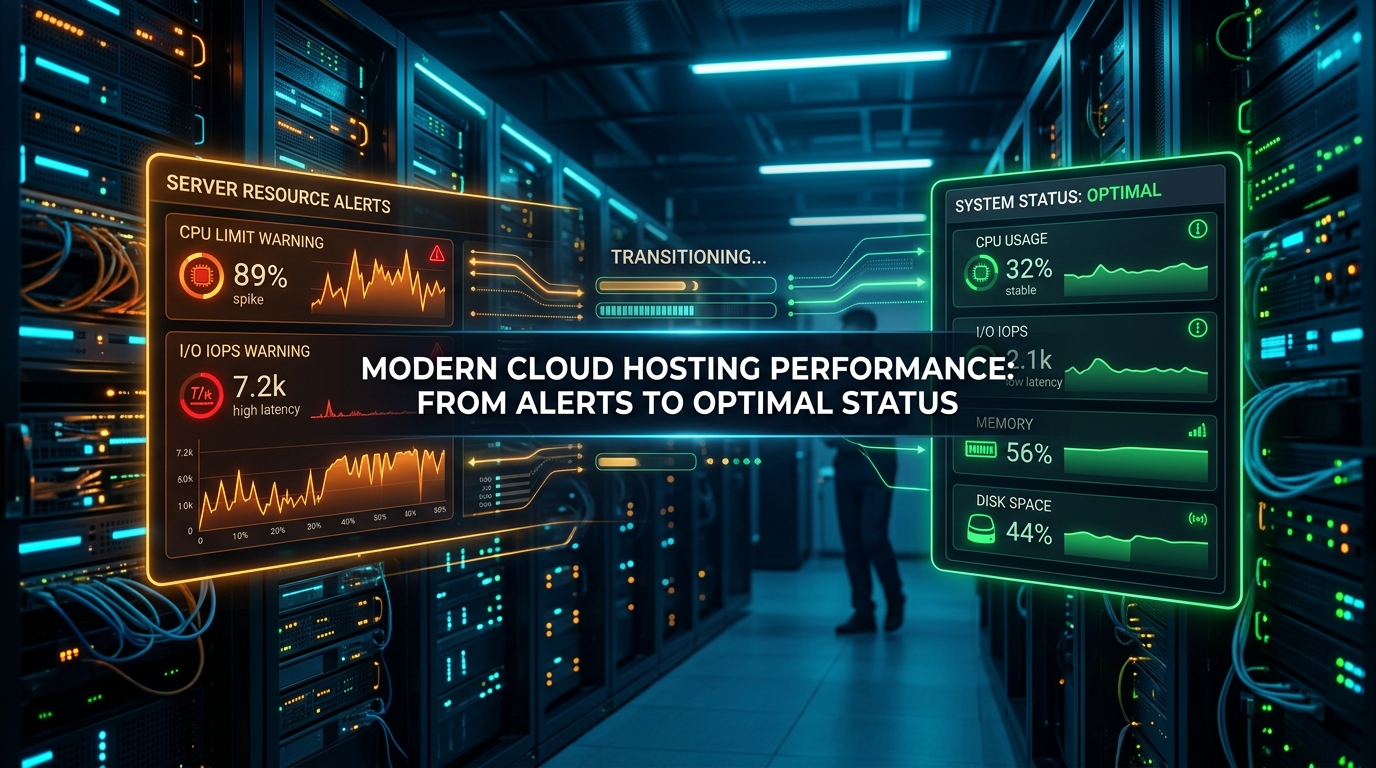
Shared hosting crashes primarily due to CloudLinux LVE resource caps rather than real traffic surges. Budget web hosting providers enforce strict artificial ceilings: typically 1 MB/s I/O disk throughput, 20 concurrent entry processes, and 100% of 1 CPU core. When uncached dynamic Elementor queries, automated brute-force bots, or virtual wp-cron.php tasks execute simultaneously, the server instantly throttles and throws 508 or 503 errors.
At AMSIT, we audit and optimize business infrastructure across India. In this forensic engineering guide, we explain the exact mechanics of shared hosting resource throttling and outline 7 field-tested solutions to keep your website fast and stable.
Table of Contents
- The Hosting Support Upsell Trap
- The 4 CloudLinux Metrics That Kill Your Site
- 1. Enable Server-Level LiteSpeed Caching (Zero-Disk I/O)
- 2. Disable Virtual WP-Cron and Schedule a Real Server Cron Job
- 3. Block XML-RPC & Brute-Force Bot Floods at Cloudflare Edge
- 4. Clean Database Transients & Autoloaded Options
- 5. Throttle the WordPress Admin Heartbeat API
- 6. Convert Media to Next-Gen WebP to Cut Disk Thrashing
- 7. When You Truly Need a VPS vs When You Are Being Upsold
- Frequently Asked Questions (FAQ)
The Hosting Support Upsell Trap
When your site crashes, you contact hosting support. Within five minutes, support sends an automated response: “Your site has exceeded its allocated CPU and I/O limit. Please upgrade to our Business Cloud or Dedicated VPS plan for ₹3,500/month.”
You check your analytics and discover you only had 60 visitors today! How can 60 visitors crash an entire server? The truth is that your code, plugins, or background bot crawlers are thrashing the server’s artificial limits. Upgrading to a more expensive server without fixing the root cause will simply burn more money while the crash persists.
The 4 CloudLinux Metrics That Kill Your Site
To master why your shared hosting keeps crashing, you must understand the CloudLinux Lightweight Virtual Environment (LVE) governor:
| Metric | Typical Budget Cap | What Causes Spikes | Symptoms & Error Code |
|---|---|---|---|
| I/O Usage | 1,024 KB/s (1 MB/s) | Uncached PHP execution, image generation, logging | Severe site lag; pages hang for 20+ seconds |
| Entry Processes (EP) | 20 – 30 connections | Slow database queries, checkout API locks, admin AJAX | 508 Resource Limit Reached |
| CPU Usage | 100% of 1 core | Heavy page builders, uncached search queries, bot scans | Requests get queued and eventually time out |
| Physical Memory | 512 MB – 1,024 MB | Bloated Elementor plugins, WooCommerce reporting | 503 Service Unavailable / Memory Exhausted |
1. Enable Server-Level LiteSpeed Caching (Zero-Disk I/O)
The single most impactful fix for shared hosting stability is server-level page caching. When a page is uncached, PHP has to read over 400 separate PHP and asset files directly off the hard drive on every visit. With a 1 MB/s I/O limit, two concurrent visitors will max out your disk allowance.
By installing LiteSpeed Cache (or Nginx FastCGI Cache), the web server serves pre-compiled static HTML directly from server RAM. Requests never invoke PHP or touch the hard disk, instantly plummeting your I/O usage from 1,000 KB/s down to 0 KB/s.
2. Disable Virtual WP-Cron and Schedule a Real Server Cron Job
By default, WordPress executes wp-cron.php on every single page load. When a visitor arrives, WordPress pauses to check if scheduled tasks, plugin updates, or email dispatches need to run. If multiple visitors hit your site at once, cron checks pile up and overwhelm your Entry Process (EP) limit.
To eliminate this, open your wp-config.php file and insert:
define('DISABLE_WP_CRON', true);Then log into your cPanel dashboard, navigate to Cron Jobs, and schedule a real background cron to execute once every 30 minutes:
wget -q -O - https://yourdomain.com/wp-cron.php?doing_wp_cron >/dev/null 2>&13. Block XML-RPC & Brute-Force Bot Floods at Cloudflare Edge
Over 60% of CPU spikes on Indian shared hosting servers are caused by automated botnets attacking xmlrpc.php and wp-login.php with dictionary attacks. Even if the attacks fail, each brute-force attempt spawns a PHP process that eats up memory.
Front your website with Cloudflare and create a WAF custom rule to challenge or block all requests hitting /xmlrpc.php. This stops millions of malicious automated requests at the Cloudflare edge before they ever reach your cPanel server.
4. Clean Database Transients & Autoloaded Options
Plugins store temporary cache data called transients inside the wp_options table. Over time, expired transients can bloat this table to tens of thousands of rows. On every page load, WordPress loads all “autoloaded” options into memory at once.
Keep your autoloaded data under 800 KB by deleting expired transients using optimization tools or standard SQL queries. If you recently experienced a malware breach, read our comprehensive guide on how to recover a hacked WordPress site to purge hidden database backdoors.
5. Throttle the WordPress Admin Heartbeat API
If you leave the WordPress admin editor open in your browser tab, the WordPress Heartbeat API sends an AJAX request every 15 seconds to check for auto-saves and session activity. If two or three administrators have tabs open, this alone consumes 15–20% of your shared CPU allocation.
Use a heartbeat control plugin to increase the interval to 60 or 120 seconds, or disable the heartbeat entirely on front-end pages.
6. Convert Media to Next-Gen WebP to Cut Disk Thrashing
Serving uncompressed 3MB JPEG and PNG images forces the server to burn disk read throughput and network bandwidth. Convert all images to lightweight WebP formats using automatic compression tools. Modern WebP images reduce file weights by up to 85% without perceptible loss in visual quality.
For custom business platforms and high-speed portals, explore our specialized custom web development solutions.
7. When You Truly Need a VPS vs When You Are Being Upsold
Use this simple checklist to determine whether you genuinely need a Virtual Private Server (VPS) or dedicated cloud instance:
- Stay on Optimized Shared Hosting If: You operate a corporate brochure website, regional business site, or blog receiving under 50,000 monthly visits. With proper LiteSpeed caching, your site will run smoothly without exceeding limits.
- Upgrade to a Managed Cloud / VPS If: You run an active WooCommerce store with 100+ concurrent live checkouts, an LMS with student video streaming, custom WebSockets, or background PDF generation that cannot be cached.
Need dedicated infrastructure advice? Check out our full range of technology and hosting engineering services.
Frequently Asked Questions (FAQ)
Why does my cPanel show 100% CPU usage when I have zero visitors?
CPU spikes with zero visitors are almost always caused by automated bot attacks against /xmlrpc.php, runaway virtual wp-cron tasks looping in the background, or malicious malware scripts running silent processes inside your hosting account.
What is the difference between a 503 and 508 error?
A 508 error specifically indicates “Resource Limit Is Reached” under CloudLinux (your site exceeded concurrent Entry Processes or Memory). A 503 error means “Service Unavailable” and occurs when the server’s PHP-FPM pool is completely choked or undergoing maintenance.
Can a free Cloudflare account prevent shared hosting crashes?
Yes! Cloudflare absorbs static asset requests (CSS, JS, images) and blocks malicious brute-force bots at its edge network, reducing requests to your origin server by up to 60%.
Struggling with recurring server crashes and slow performance?
Don’t waste money on unnecessary hosting upgrades. Contact the AMSIT engineering team today for a comprehensive server audit and optimization overhaul.
